Google Lens
Google LLCTools
4.763.78K Reviews
- Version
- Varies With Device
- Installs
- 1.00B
- Age Rating
- Everyone
Screenshots
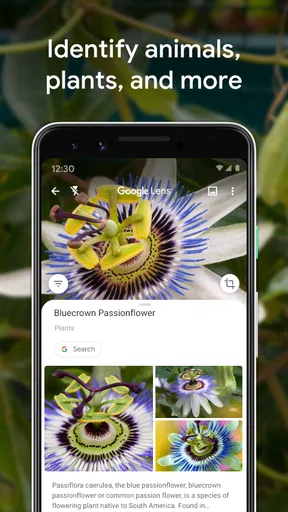
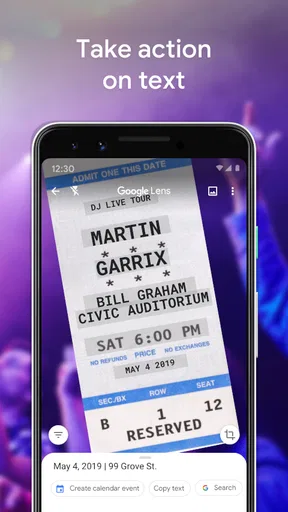
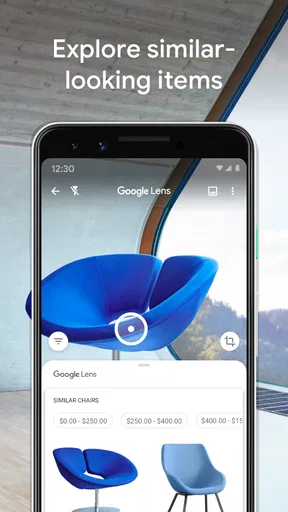
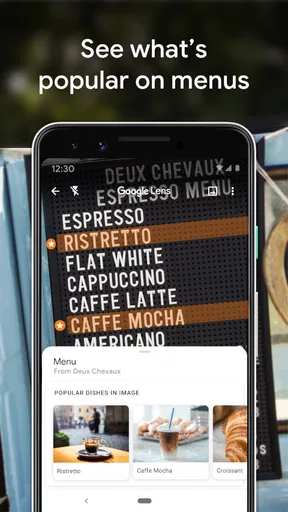
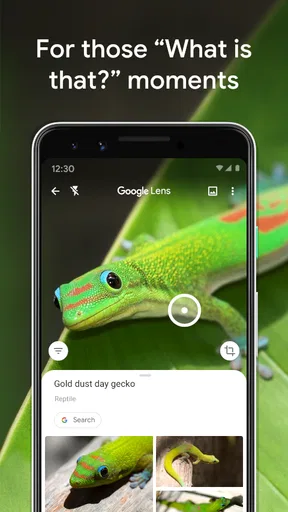
Our Review of Google Lens
 Analysis by Appyee
I reach for Google Lens when I can see something clearly but don’t know what to call it, or when I need to get useful text off a sign or page without typing it all out. It turns the phone camera into a practical search tool: aim at an object, words, or a scene, then use the results as a starting point. That last part matters. I find it most helpful when I treat Lens as a fast way to investigate, not as an authority that is always right.
What you get without paying
Google Lens is a free tools app from Google LLC, so there is no purchase price to weigh against its everyday uses. It has a 4.7 average from around 2.8 million ratings, and has passed one billion installs. Those figures suggest wide use, but they don’t guarantee that every match will be accurate or that every person will find it useful. The app is rated for Everyone and runs on Android 6.0 or later.
For me, the value comes from having several camera-based tasks in one place rather than opening a separate app whenever I want to read a label, translate a phrase, or investigate an unfamiliar object. The free access makes it easy to try for occasional needs as well as regular use; it is not a reason to expect perfect results. If you need dependable specialist identification or a carefully checked translation, I would still verify important answers elsewhere.
Why the camera workflow can save time
The useful trick is to choose the right target before you search. With a page of text, frame only the lines you need instead of pointing at the whole desk or book. That makes copying or translating a short passage easier to review. For a product, a clear view of a distinctive detail can be more useful than a distant shot of the entire item. Lens gives you a way to move from seeing something to asking a focused question about it.
That workflow is different from typing a description into a regular search box. A text search is often better when I already know the right words; Lens is more convenient when I don’t. Compared with a dedicated translation app, Lens can be a handy first stop for printed text in front of me, while a translation tool may suit longer conversations or careful writing better. Its strength is reducing the effort of starting a search, not replacing every specialist tool.
Where I would double-check the result
Visual matches depend on what the camera can capture. Glare, blur, unusual angles, cluttered backgrounds, or a tiny subject can make the result less useful, so I try a closer, steadier view before deciding Lens has failed. A plant match, for example, is a clue rather than a safe basis for eating or handling an unfamiliar species. For a purchase, I check that a suggested item actually matches the size, condition, and details I want instead of assuming a similar-looking result is identical.
Text recognition also deserves a quick proofread before I reuse the result. A name, number, or punctuation mark can be easy to misread, especially on a worn label or a decorative font. I would not rely on a quick translation alone for medical directions, legal paperwork, or another high-stakes decision. In those situations, use a qualified source or a person who can check the meaning.
Who is likely to get the most from it?
I recommend it most to people who regularly encounter unfamiliar packaging, menus, signs, plants, or printed material and want a quick way to explore them. It can also help students capture a short passage for notes or travelers get the gist of a sign. If you rarely need visual search, the app may sit unused; if your main goal is a full document translation, detailed shopping research, or expert nature identification, a dedicated service may be a better fit.
Before using it, it helps to ask what you want from the image: a translation, readable text, a possible match, or background information. That small choice makes the results easier to judge and reduces the temptation to accept the first answer just because it appears quickly. I also find it sensible to keep a second route in mind—typing a distinctive phrase into search, for instance—when the camera result is vague.
My verdict on the free utility
As a free camera-based tool, Google Lens is worth trying if you like solving small, practical questions on the spot. Its best quality is convenience across several everyday tasks; its main limitation is that visual recognition can produce plausible but imperfect matches. I would keep it as a first step for curiosity and routine reading, while turning to a specialist or checking another source when accuracy has real consequences.
Ever found yourself staring at something and thinking, "What on earth is that?" Well, you’re not alone, and Google Lens is here to save the day. This nifty app is like having a pocket detective at your service, ready to identify everything from plants to famous landmarks. Let's dive into how it works and why it might just become your new favorite app.
Getting to Know Google Lens
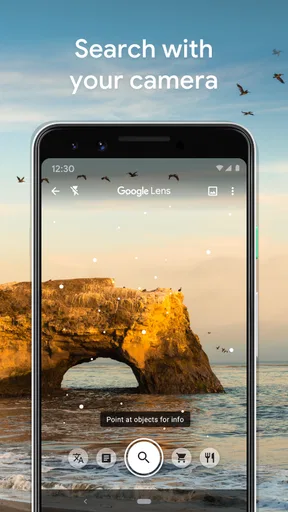
First off, if you haven't already downloaded Google Lens, you might be missing out. This app uses your smartphone's camera and some serious AI magic to recognize objects and provide information about them. Simply point your camera at something intriguing and let the app do its thing!
The Setup
Setting up Google Lens is a breeze. If you're an Android user, it's likely pre-installed, but if not, you can easily grab it from the Play Store. iPhone users can find it in the App Store. Once installed, just open the app and give it access to your camera. Easy peasy!
Features That Stand Out
So, what can you actually do with Google Lens? Here's a quick rundown of some of its coolest features:
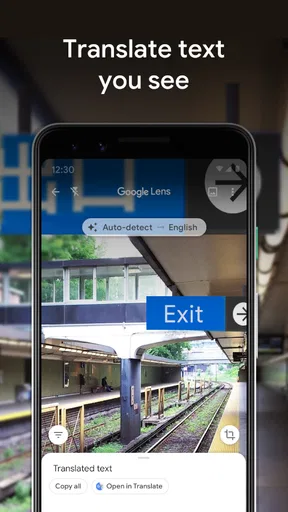
- Text Translation: Traveling or dealing with foreign languages? Snap a pic of text, and Lens will translate it in real-time.
- Text Copy: See some text you need to save? Point your camera, and Google Lens lets you copy it directly to your clipboard.
- Shopping: Found a pair of shoes you love? Use Lens to find similar styles online and compare prices.
- Identify Plants and Animals: Ever wondered what type of flower that is? Lens can help you out.
- Explore Landmarks: While sightseeing, point your camera at a monument or landmark to get its history and details.
Using Google Lens in Everyday Life
Imagine you're at a restaurant and the menu is in a language you don't understand. No problem! Just point Google Lens at the menu, and voilà, you can translate it instantly. Or, say you're hiking and come across a stunning flower. With a quick snap, you can learn all about it, including its name and whether it's native to the area.
Shopping is another area where Google Lens shines. You're out and see someone wearing a jacket you absolutely need in your life. Snap a picture, and Lens will help you track it down online, sometimes even suggesting similar (and possibly cheaper) alternatives.
Making a quick search more useful
A realistic use for me is standing in a hardware aisle with an unfamiliar fitting in hand. Rather than guess its name, I can photograph the part and use likely matches to learn the terms sellers use. I would then compare the shape and details carefully before buying; a visual resemblance is a lead, not proof that two parts fit together. The same approach works for a household item whose label has worn off: search for clues, then confirm against the object itself.
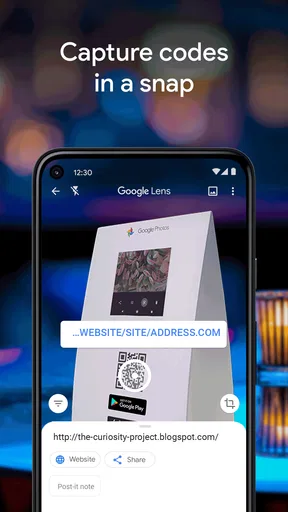
For printed material, I get better results by keeping the camera parallel to the page and selecting a manageable block of text. If I need only a phone number or a short instruction, capturing the entire page adds noise and gives me more to inspect. When copying text, I check line breaks and punctuation before pasting it into a message or note. This is a small step, but it avoids turning a quick scan into a new editing chore.
How it fits alongside other tools
Lens is most distinctive when the thing I want to search is physically in front of me. A conventional web search is more direct if I can describe the object precisely, while a barcode or product search can be preferable when I need an exact model rather than similar-looking shopping results. For language work, Lens is convenient for a menu or sign, but a dedicated translator is the better choice when I need sustained conversation, polished wording, or a careful review of a long passage.
I also wouldn’t use a visual match as a substitute for specialist advice. A plant result can narrow down possibilities, but look-alike species make confident identification difficult from one image. The same caution applies to landmarks and unfamiliar products: use the result to guide further reading, not to assume every detail is settled. This is where Lens’s speed is both its appeal and its trap; the answer arrives quickly, but checking it remains my responsibility.
Small habits that prevent frustration
If the first search is broad, I try changing the framing rather than repeatedly photographing the same view. Move closer to the distinctive feature, avoid shadows where possible, and keep unrelated objects out of the frame. With a label, the brand or model text may be more useful than a decorative image; with clothing, a clear view of the cut or pattern can help distinguish it from near matches. These adjustments are especially worthwhile when a result looks plausible but not quite right.
Another useful habit is to decide what would count as a good answer before opening the camera. If I want to translate a sentence, I need readable text; if I want to find a product, I need a close visual match and details I can verify; if I am simply curious about a landmark, a likely identification may be enough to begin exploring. That prevents me from treating every result as equally reliable and helps me know when to switch to typed search or a specialist source.
Who may prefer another option
People who need a tool to work in a predictable, narrowly defined way may be happier with a dedicated app for that task. Lens brings varied visual searches together, but that breadth does not make it the best choice for every translation, shopping decision, or identification job. It is also less useful when the subject is hidden, poorly lit, too small to photograph clearly, or better described with words than shown in an image.
On iPhone, Android, and across different devices, the exact route into camera-based search may feel different, so I would not choose it on the assumption that every screen or step will look identical. The core appeal is still straightforward: use an image to begin finding information. If you prefer manual search, already rely on a specialist service, or rarely wonder about things you see, there is no need to add another app just because it is widely used.
What to expect before opening it
Google Lens is a tools app rather than a complete research workspace. I think of it as the first step: it helps identify a possible subject, extract visible words, or surface related shopping options, then I decide whether the result is enough. It can answer a quick curiosity in the moment, but it is not a replacement for checking sources when the decision matters. That distinction makes the app more useful, not less, because it sets a sensible expectation.
Its broad appeal is reflected in its reach, but popularity alone should not be the deciding factor. The practical question is whether camera-based search removes friction from things you already do. If you often read signs, compare objects, or capture short bits of text, the answer is likely yes; if your searches are mostly abstract questions or long-form tasks, a regular search engine or purpose-built app may serve you better.
Final Thoughts
In a world where information is at our fingertips, Google Lens takes it a step further by turning our cameras into smart, interactive tools. It's like having an encyclopedia, translator, and personal shopper all wrapped up in one app. While it might not be perfect—sometimes it might get things wrong—the sheer convenience it offers makes it a must-have for any smartphone user.
So, if you haven't tried it yet, give Google Lens a shot. It might just change the way you see the world, quite literally. And the best part? It's free, so there's really nothing to lose. Go ahead, download it, and start exploring the world with a fresh pair of "lenses."
Privacy and Permissions
See what permissions an app requests and how it handles your data.
- Camera
- take pictures and videos
- Other
- view network connections, measure app storage space, full network access, run at startup, control vibration, prevent device from sleeping, read Google service configuration
Verdict
Strengths of Google Lens
- Effortlessly identifies objects and landmarks.
- Integrates seamlessly with Google services.
- Translates text in real-time effectively.
- Recognizes plants and animals accurately.
- Scans and saves business cards quickly.
Limitations of Google Lens
- Requires internet for optimal performance.
- Privacy concerns with data collection.
- Inconsistent results in low light.
- Not all features available on iOS.
- Battery drain with prolonged use.
Other Releases by Google LLC
View All
Google Calendar
Productivity4.6

Google Messages
Communication4.6

Tools4.0

Google TV
Video Players & Editors3.9
Similar Picks in This Category
View AllGoogle LLC4.0

Gboard - the Google Keyboard
Google LLC4.5

Google Play services
Google LLC4.3

Google Play Store
Google LLC4.9

Files by Google
Google LLC4.5

SHAREit: Transfer, Share Files
Smart Media4U Technology Pte.Ltd.4.3
You May Also Like
View All
Frequently Asked Questions
What is Google Lens and how does it work?
Google Lens is an AI-powered visual search tool that allows users to search for information using images rather than text. By pointing your phone's camera at an object, text, or barcode, Google Lens can identify it and provide relevant information, translations, or shopping links. It integrates seamlessly with Google Assistant and Photos.
Can Google Lens translate text in real-time?
Yes, Google Lens can translate text in real-time. By pointing your camera at the text, it will instantly display the translation on your screen. This feature supports a wide range of languages and is particularly useful for travelers or those learning new languages. Ensure you have an active internet connection for the best results.
Is Google Lens available on both Android and iOS devices?
Google Lens is available on both Android and iOS devices, though it is more deeply integrated into Android. On Android, it can be accessed directly through the camera app, Google Photos, or Google Assistant. On iOS, it is available via the Google app or Google Photos, requiring installation from the App Store.
Does Google Lens require an internet connection to function?
Yes, Google Lens generally requires an internet connection to provide accurate results. While some basic functionality might work offline, such as text recognition, full features like translation, shopping links, and detailed information retrieval rely on internet connectivity to access Google's vast database.
Is Google Lens safe to use in terms of privacy?
Google Lens prioritizes user privacy by processing images and data securely. However, as with any app that accesses your camera and data, it is important to review permissions and settings. Google commits to using data responsibly, but users should stay informed about privacy policies and adjust settings to their comfort level.
